 Add to Chrome
Prrab Documentation
See how Prrab works — from the shortcut to copying and editing images.
On this page
Getting started
Using Prrab
Settings
Reference
Getting started
What is Prrab
Prrab is an on-page image prep tool. It lets you get images ready to use as you browse.
Most images you find on the web aren't usable as they are:
- A watermark sits across the image.
- The background has to go.
- Something in the frame doesn't belong there.
- It's smaller than you need it to be.
Fixing any of that normally means saving the file, opening another app, and coming back. The image has to leave the page before it can become usable.
Prrab turns all of that into one shortcut. Point at the image, press the keys, and come away with it ready to use — without leaving the page.
Install in 30 seconds
- Add Prrab from the Chrome Web Store and pin the icon to your toolbar.
- Click the icon and check that Prrab is on.
- Hover any image on any page — a purple glow means it's working.
That's the setup. Press ⌘C while the glow is showing and the image is on your clipboard — see Your first copy.
Copying works right away with no account. Signing in with Google from the popup adds Editor mode and your library, which opens from the side panel. You can do it any time.
Using Prrab
Your first copy
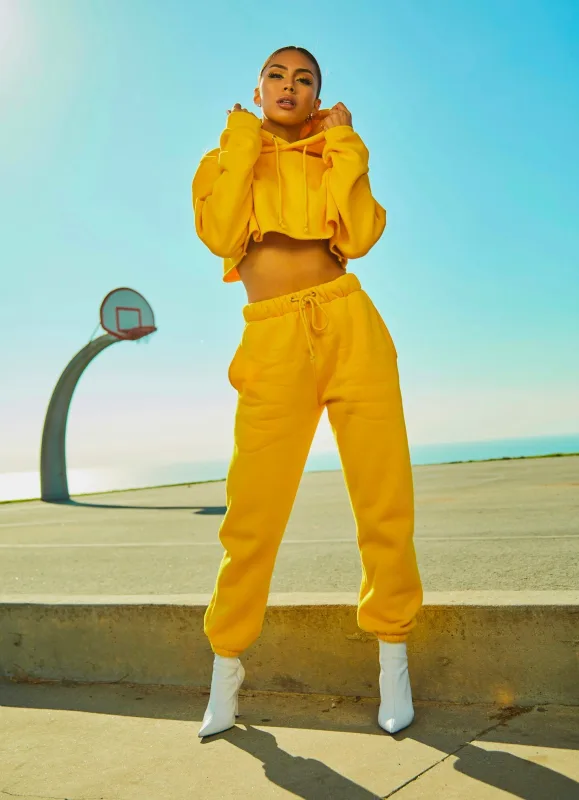
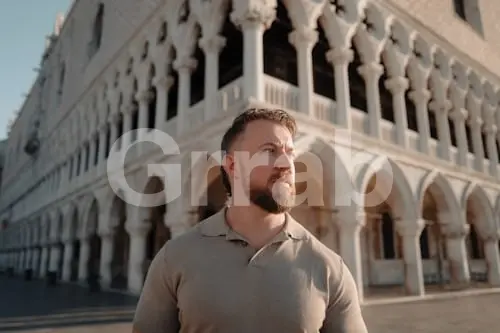
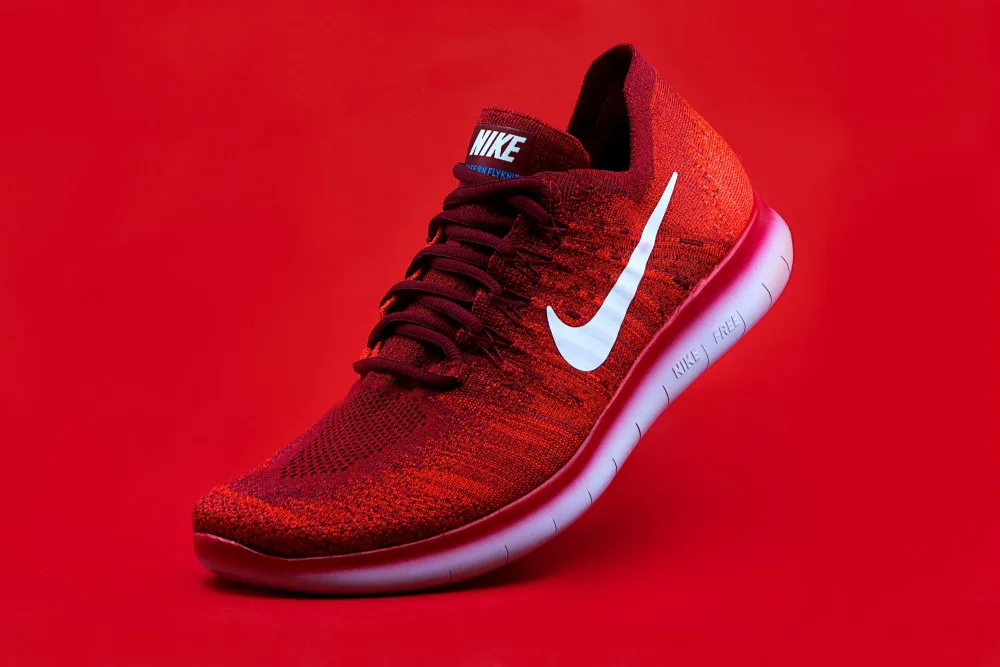
Hover any image and a purple glow marks it. Then press ⌘C.
What happens next depends on your mode — or .






 Back
Back Refresh
 Upscale
 Copy
Copy
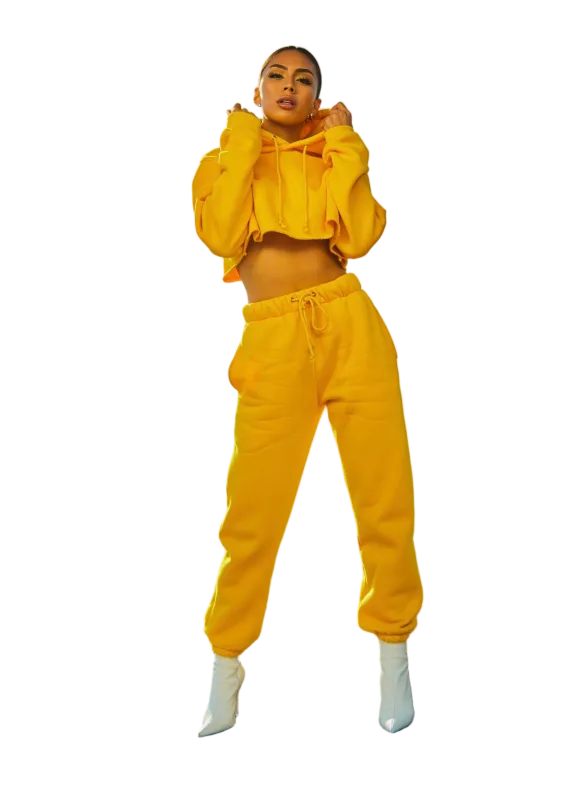

Instant mode copies the image straight to your clipboard. Nothing opens, nothing interrupts you, and you carry on browsing. This is the default, and it's what you want when the image is already fine as it is.
Editor mode opens the image on the page first, so you can fix what's off before it reaches your clipboard. The page stays where it is behind the editor — nothing is downloaded and you don't leave the tab.
- Remove Background — Keeps the subject and drops everything behind it, leaving transparency.
- Remove Watermark — Clears a watermark laid across the whole image.
- Erase — Brush or drag a box over anything you don't want. The area is filled in with what should have been behind it.
- Upscale — Enlarges the image four times in each direction.
Back undoes your last step and Refresh returns the image to how it started. When it looks right, Copy puts it on your clipboard.
Editor mode requires signing in. Remove Background and Remove Watermark run on a server; Erase and Upscale run on your own machine — see Privacy and data.
Prrab only acts when your cursor is over an image. Anywhere else on the page, ⌘C behaves exactly as it always has, so selecting text and copying it still works the way you expect.
Your library
Everything you copy while signed in is kept in your library — you don't save anything, copying is the save. Open it from the side panel and manage your whole image history from one place.
From any image you can:
- Re-copyPut it back on your clipboard in one click.
- EditOpen it in the editor and fix what's off.
- DeleteRemove it, on its own or in a selection.
- DirectoryWhere saves land: Downloads, a folder of your choice, or Google Drive. System folders can't be used.
- DownloadSelect a card, pick a format (original, png, jpg, jpeg, webp), and save it to your directory.
The hover-and-shortcut action works on library cards too, following whichever mode you're in.
Your library is tied to your Google account, so it follows you to another computer when you sign in there.
Settings
All settings
Adjust how Prrab behaves to fit the way you work. Everything below is in the popup, the side panel, or both.
- On / off switch — Activates or deactivates Prrab.
- Shortcut — Sets the key combination that triggers Prrab on the image under your cursor. ⌘C by default.
- Mode — Sets what the shortcut does: Instant or Editor, toggled with ⇧⌘.
- Account — Signs you in with your Google account. Editor mode and the library are for signed-in users only. (Signing out keeps your images.)
- Saving — Sets the destination folder and the file format used when you download. See Your library.
Reference
Privacy and data
Most of what Prrab does happens inside your browser. Erase and Upscale run on your own machine — the models ship with the extension, so the image never leaves your browser.
Remove Background and Remove Watermark are processed on a server, because those models are too large to run locally. The image is passed to the provider, used only to produce the result you asked for, and not kept by Prrab. Neither provider keeps it beyond a short window set out in the Privacy Policy.
Prrab doesn’t use third-party analytics or trackers, doesn’t watch your browsing history, and only acts on images you point at.
For the full breakdown — what’s processed where, which providers are involved, and what’s kept under your account — see the Privacy Policy.
Help and support
If something isn’t working, try these first:
- Refresh the page. Prrab needs to load on a page before the shortcut works, so a tab you opened before installing won’t respond.
- Check that Prrab is on in the popup.
- Check your shortcut — something else on the page may be using the same keys.
- For Editor mode or your library, check that you’re signed in.
Still stuck, or have a suggestion? Email tlstlsgns@gmail.com.